




Faculty are responsible for the digital accessibility of journal articles they provide in Canvas.
Providing access to PDF journal articles that meet digital accessibility requires these ten (10) essential elements, and generally PDFs of journal articles do not include all of these elements and do not meet digital accessibility.
- Text is real text (not just images). Screen readers must be able to read and select text. Scanned PDFs must be OCR'd so text is searchable and readable.
- Document properties are set. A screen reader needs the document title from the PDF document when it first opens a PDF. Without document properties, even a well-tagged document can be confusing or misleading to screen reader users.
- Tags provide structure and define headings, paragraphs, lists, tables, imaged, and their relationships. Without tags, assistive technology cannot understand the document.
- Logical reading order. Screen readers need to be able to read the content in the correct order. Columns, sidebars, footers, and captions must be sequenced properly in the tag tree.
- Proper headings. Screen readers need to read headings that are taged (H1, H2, H3, etc.) and are not bold or large text. Proper headings also help screen reader users navigate quickly.
- Alternative text for images. Screen readers rely on alternative text to convey meaningful information or purpose for images. Decorative images should be marked as artifacts so screen readers skip them.
- Accessible tables. Screen readers need to read tables with proper table tags (Table, TR, TH, TD), have header rows and columns identified, and include table summaries.
- Descriptive links. Screen readers annouce meaningful linked content that describes the destination (not "click here").
- Color and contrast do not carry meaning alone. Sufficient contrast beween text and background, and color is not the only way information is conveyed (e.g., "items in red").
- Keyboard accessibility. Users can navigate content and links using only a keyboard.
Linking directly to a journal publisher's website to provide article access can create the following digital accessibility issues:
- No guaranteed access off campus as publisher URLs do not routinely route students through Auburn's login system. Off campus students can lose access.
- Students may be prompted to purchase an article that Auburn University Libraries already licenses.
- Publisher session links and browser address-bar URLs are often temporary and stop working.
- Inconsistent student experiences can create confusion and accessibility issues.
In the rare case you need to share a PDF of a journal article, you need to verify that open-access articles are accessible, you have publisher permission to redistribute the article, and/or you are prepared to fully remediate the PDF.
If you must use a scanned PDF of a journal article, ensure it 1) complies with Auburn University's Copyright Regulations Policy and Fair Use Checklist, and 2) it needs to be able to be OCR'd so the text is searchable and readable by a screen reader.
What is the best practice to share a journal article in Canvas?
The best practice is to link to the journal article via the library-hosted databases for these reasons:
- Library platforms are vetted for accessibility. Individual faculty-uploaded PDFs do not receive this ongoing accessibility oversight.
- Students get the more accessible version available (e.g., HTML full text is more accessible than PDFs).
- Libraries provide stable links or DOI-based links that contine to work across semesters.
- It avoids inaccessible PDF remediation. Uploading a journal article PDF requires the faculty member to be responsible for tags, reading order, alternative text, etc.
- Linking to library-hosted journal articles complies with legal use of the content because libraries license database content for instructional use.
How do I share a library-hosted journal article link in Canvas?
- Go to the Auburn University online databases portal.
- Select the database where the journal is indexed (e.g., Academic Search Premier, ERIC, MEDLINE, PsycINFO, etc.).
- Search for the journal article.
- Locate the journal article record and open it. Note the information on the screen such as the "Share link" in the upper right corner and the "Full Text Finder" link in the lower left corner.
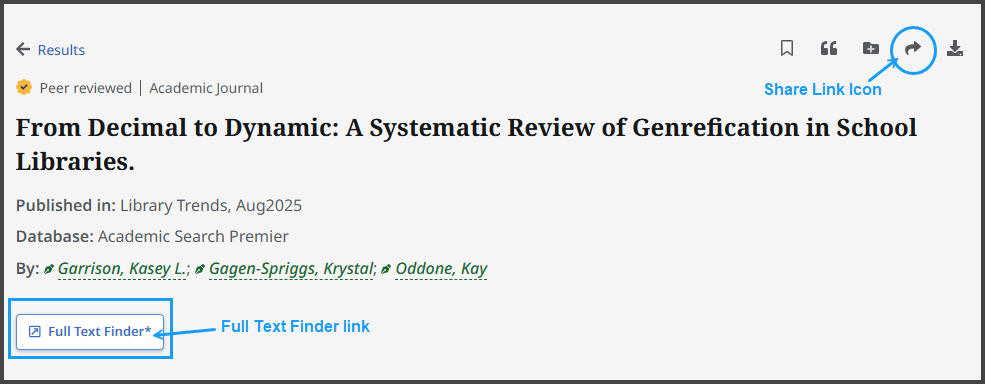
- When you click on the "Share link" icon, another page will open, and you will find a link to "Create link." Click it to copy the stable link (sometimes called permalink or persistent link) to the article.
- Stable links (e.g., permalink, persistent links, doi, etc.) consistently link or connect users to particular full-text journal articles or to citations within their research databases.
- Never use the URL from the browser's address bar, as it will likely expire.
- Click on the "Full Text Finder" button to check for the availability of a full text format. If a full text option is available, copy the link to that format.
- Create a Canvas page and title it "Course Readings", "Subject Bibliography", or whatever title is appropriate. The text on the Canvas page can be written as a professional reference list. For the example, this journal article can be listed and linked using the "stable link" or the “full text article link” copied in Step #5.
Garrison, K.L., Gagen-Spriggs, K., & Oddone, K. (2025). From decimal to dynamic: A systematic review of genrefication in school libraries. Library Trends, 74(1), 79-106. [HTML full text from Project Muse] - You can also paste the article's stable link in a Canvas Module, please remember to use descriptive text and hyperlink to the stable link.
How will students access the library-hosted journal article in Canvas?
- Test Links: Use Canvas' Student View to test the stable link or test from an off-campus location to ensure it works.
- When on campus, students will click on the article's hyperlinked text on the Canvas Page or Module. The article will open.
- When off campus, students will click on the article's hyperlinked text on the Canvas Page or Module, and they will be prompted to log in using their Auburn credentials. They may also be prompted to click on an Auburn Univeristies Access button/link. Then the article will open.
